
My Orders
The My Orders page is your command center for tracking, managing, and accessing all verification orders you've submitted through bankVOD. This page allows you to download reports, view cover letters, manage tracking information, and export data for your records.
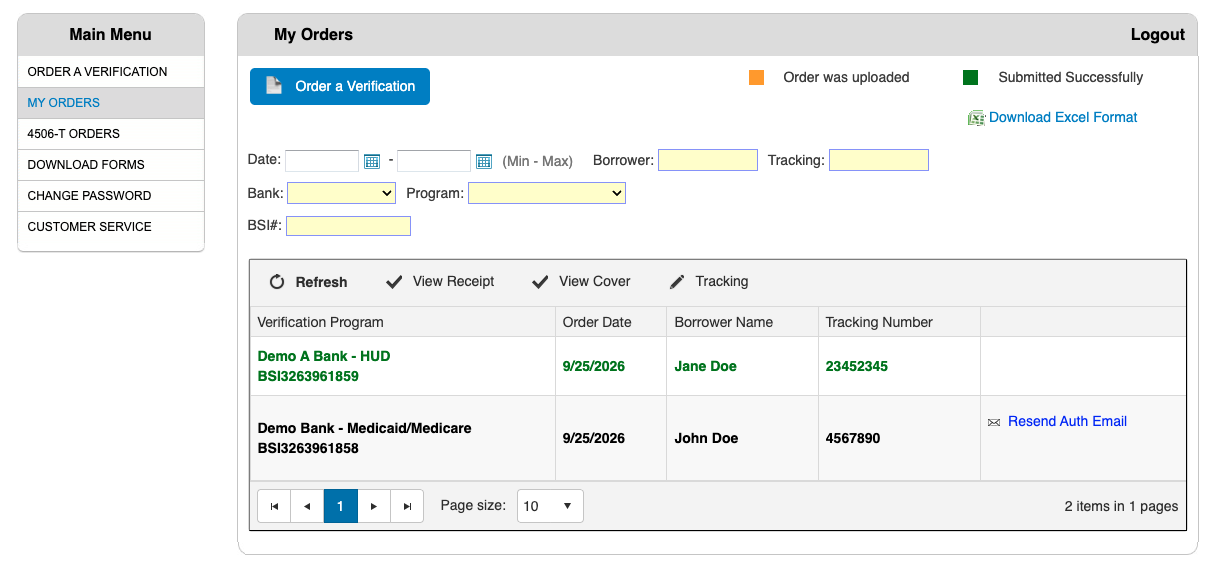
Search and Filter Tools
Use these filters to quickly find specific orders:
Date Filter
-
From Date: Click calendar icon to select start date
-
To Date: Click calendar icon to select end date
-
Filters orders within a specific timeframe
Borrower Filter
-
Type borrower name (partial or full)
-
Filters results by borrower
Tracking Number Filter
-
Enter the tracking number you assigned during order submission
-
Helps locate orders by your internal file numbers
Bank Filter
-
Select from dropdown list of participating banks
-
Filter to see orders for a specific bank
-
Useful when working with multiple banks
Program Filter
-
Select verification type from dropdown
-
Narrows results to specific verification types (HUD, Medicaid/Medicare)
BSI# Filter
-
Search by bankVOD's internal order number
-
Each order has a unique BSI identifier
Order Management Actions
Located above the order list, these buttons let you manage your orders:
🔄 Refresh
-
Updates the order list with latest information
-
Click to see newly completed orders
-
Useful when waiting for order completion
✓ View Receipt
-
Select an order and click to view detailed receipt
-
Shows complete order confirmation
-
Can be printed or saved for records
✓ View Cover
-
Select an order and click to view cover letter/form
-
Shows the confirmation request form sent to the bank
-
Includes all order details and authorization information
✏️ Tracking
-
Update or add tracking information for an order
-
Helps organize orders by your internal reference system
-
Can be modified after order submission
Downloading Completed Orders
-
Locate your order in the list
-
Click the Download link or button
-
Save the PDF verification to your loan file
-
Verification typically includes all requested information
Resending Authorization Emails
When to Resend Authorization:
-
Borrower didn't receive original email
-
Email was accidentally deleted
-
Need to send to different email address
-
Authorization expired or needs renewal
How to Resend:
-
Locate the order in your orders table
-
Find the Resend Auth Email link in the Actions column
-
Click the link
-
Borrower will receive a new authorization request
Important: Ensure the borrower's email address is correct before resending. If the email needs updating, contact bankVOD support.
Exporting Order Data
Use export functions to:
-
Download order lists for record-keeping
-
Create reports for management
-
Track verification costs
-
Maintain compliance documentation