
Authorized Users
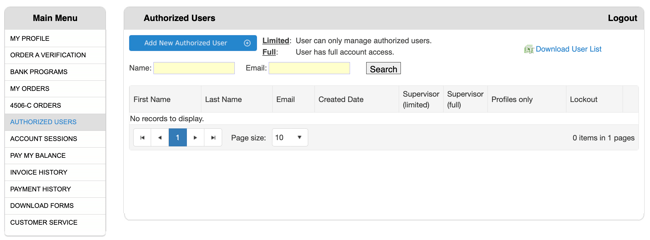
The Authorized Users page is a critical administrative tool that allows account administrators to manage team members who have access to the bankVOD system. This page enables you to add new users, control access levels, search existing users, and maintain security across your organization's verification requests.
Key Functions
- Add new authorized users to your account
- Assign appropriate access levels
- Search and filter existing users
- Download complete user list for records
- Manage user permissions and roles
Adding a New Authorized User
Step 1: Open the Add User Form
- Click the blue Add New Authorized User button
- A modal window titled "Authorized User" will appear
Step 2: Complete the User Information
Required Fields:
- First Name: User's given name
- Last Name: User's surname
- Email: Must be valid and unique (used as username for login)
Optional Fields:
- Cost Center/Acct Code: For internal billing or tracking by department/project
- Comments: Administrative notes about the user
Password:
- System automatically generates secure password
- Password emailed to user
- User can change password after first login
- Do not attempt to manually enter password
Step 3: Submit the New User
- Review all entered information for accuracy
- Verify email address is correct (critical for login)
- Click the blue Submit button
- New user will receive welcome email with login credentials
Step 4: Set User Permissions
After creating the user, set their access level:
- Locate the new user in the Authorized Users table
- Check the appropriate permission box:
- Supervisor (limited) - Administrative access only
- Supervisor (full) - Complete operational access
- Profiles only - Restricted profile access
- Leave all boxes unchecked for minimal access (if applicable)
- Changes may save automatically or require confirmation
Understanding Access Levels
Supervisor (Full):
- Complete access to all system features
- Can order verifications
- Can view all orders
- Can manage authorized users
- Can access billing and reports
- Full administrative capabilities
Supervisor (Limited):
- Administrative access with restrictions
- Can manage users
- Limited ordering capabilities
- May have billing access restrictions
Profiles Only:
- Restricted to profile management
- Cannot order verifications
- Limited system access
No Permissions (Unchecked):
- Minimal system access
- May only view specific information
- Cannot order or manage users
Searching for Users
Use the search tools to quickly find users:
Search Options:
- Search by name
- Search by email
- Filter by access level
- Filter by cost center
- Search by lockout status
Downloading User List
To Download:
- Click Download User List link in top-right corner
- Excel file will download with complete user information
Spreadsheet Columns Include:
- First Name
- Last Name
- Email (login address)
- Created Date
- Supervisor (limited) status
- Supervisor (full) status
- Profiles only status
- Lockout Status
- Cost Center/Acct Code
- Comments
Use For:
- Record keeping
- Audit compliance
- User access reviews
- Department billing allocation
- Security management
Managing Existing Users
Modifying User Permissions:
- Locate user in the table
- Check or uncheck permission boxes
- Changes save automatically or require confirmation
Reviewing User Access:
- Regularly review user list
- Remove access for departed employees
- Update permissions as roles change
- Verify email addresses remain current
Lockout Status:
- Users may be locked out after failed login attempts
- Contact bankVOD support to unlock accounts
- Review security if multiple lockouts occur