
Pay My Balance
The Pay My Balance page is your central hub for managing outstanding invoices and making payments for verification services. This page allows you to view your current balance, review recent invoices, and submit payments via credit card or ACH (Automated Clearing House) bank transfer.
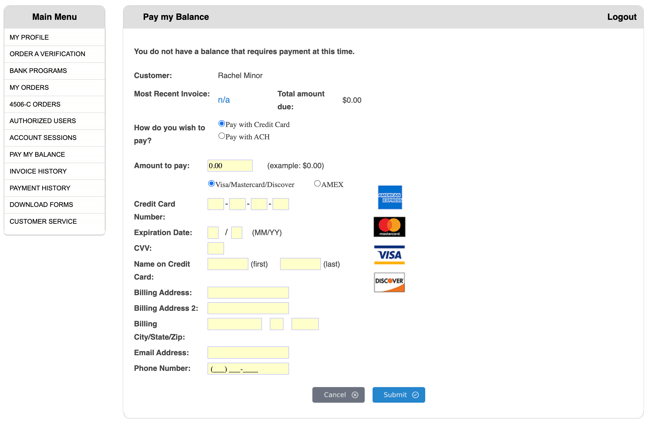
Key Functions
- View current balance due
- Review most recent invoice
- Make credit card payments
- Submit ACH bank payments
- Pay full balance or partial amount
- Maintain payment records
Payment Methods
Option 1: Pay with Credit Card (Default)
Accepted Cards:
- Visa
- Mastercard
- Discover
- American Express (AMEX)
How to Pay:
- Select "Pay with Credit Card" (default option)
- Enter credit card information
- Enter payment amount
- Click Submit
Option 2: Pay with ACH
ACH Payment:
- Direct bank transfer
- Requires bank account information
- May take 2-3 business days to process
How to Pay:
- Select "Pay with ACH"
- Enter bank account information
- Enter payment amount
- Click Submit
Making a Payment
Step 1: Review Your Balance
- View current balance due
- Review recent invoice details
- Note any upcoming due dates
Step 2: Select Payment Method
Choose either:
- Credit Card (immediate processing)
- ACH (2-3 business day processing)
Step 3: Enter Payment Amount
Amount to Pay Field:
- Enter the amount you wish to pay
- Use decimal format (e.g., 150.00)
- Dollar sign ($) not required
- Can pay full balance or partial amount
Step 4: Complete Payment Information
For Credit Card:
- Card number
- Expiration date
- CVV/Security code
- Billing address
- Cardholder name
For ACH:
- Bank name
- Routing number
- Account number
- Account type (checking/savings)
- Account holder name
Step 5: Submit Payment
- Review all information for accuracy
- Click Submit button
- Wait for confirmation (do not refresh page)
- Save confirmation number for records
After Payment
Confirmation:
- Confirmation number displayed
- Confirmation email sent
- Payment receipt available for download
Account Update:
- Balance updated after processing
- Payment appears in transaction history
- Invoice marked as paid or partially paid
Viewing Invoices
Recent Invoice Section:
- View most recent invoice details
- See invoice date and amount
- Download invoice for records
- Review verification charges
Invoice Details Include:
- Invoice number
- Invoice date
- Due date
- Total amount due
- Itemized verification charges
- Previous balance (if applicable)