
Assets Report
Assets Report (Verification of Asset - VOA) provides digital asset verification in seconds, offering a fast and secure way to automate asset verifications with detailed historical transaction data.
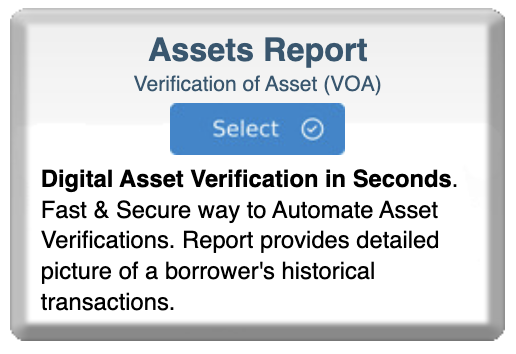
Step 1: Select Assets Report Program
- Log in to bankVOD
- Navigate to "Select a Program" page
- Locate the Assets Report card with subtitle "Verification of Asset (VOA)"
- Click blue Select button
Step 2: Select Loan Type
Two options appear:
Option 1: bankVOD
- Description: Fast & Secure way to Automated Asset Verifications
- Use for: Standard asset verification requests
- Best for: Conventional, FHA, VA, USDA loans, commercial purposes
Option 2: DAY1 CERTAINTY (Fannie Mae)
- Label: Authorized Report Supplier
- Use for: Fannie Mae Day1Certainty loans specifically
- Best for: Loans sold to Fannie Mae, Desktop Underwriter (DU)
Which Should You Choose?
Choose bankVOD if:
- Processing conventional loan not sold to Fannie Mae
- Need verification for FHA, VA, or USDA loans
- Conducting due diligence or quality control
- Need asset verification for commercial purposes
- Unsure (bankVOD format is more universal)
Choose DAY1 CERTAINTY if:
- Loan will be sold to Fannie Mae
- Need Day1Certainty formatting specifically
- Loan origination system requires Fannie Mae validation
- Using Fannie Mae's Desktop Underwriter (DU)
Click on the appropriate card for your loan type.
Step 3: Complete the Order Form
Order Information
Bank Verification Program:
- Pre-filled field
- Confirms you're ordering asset verification
Your Name:
- First Name: Your first name
- Last Name: Your last name
Your Email Address:
- CRITICAL - where reports will be sent
- Receives order confirmations, reports, status updates, borrower verification links
Date:
- Format: MM/DD/YYYY
- Current date
Tracking Number:
- Optional but recommended
- Can be borrower name, property address, loan number, or internal reference
- Helps identify order on invoice
Borrower Information
First Name:
- Borrower's legal first name
- As it appears on bank accounts
Last Name:
- Borrower's legal last name
- As it appears on bank accounts
Middle Name:
- Optional
- Helps ensure accurate matching
- Use if borrower commonly uses middle name
SSN# (Social Security Number):
- 9-digit Social Security Number
- Format: 123-45-6789 or 123456789
- Required for identity verification
- Protected by encryption
Borrower Email:
- Borrower's email address
- Where they'll receive asset verification request
Accounts to be Verified
Number of Months:
- Select how many months of transaction history you want
- Dropdown menu with options
Adding Accounts
Two options for specifying accounts:
Option 1: Search by Bank Name
- Enter financial institution name in "Enter bank name" search field
- System displays matching bank names
- Select appropriate bank from results
Option 2: Enter Account Number
- Type account number in "Enter account number" field
- Use when you know specific account details
- Ensures correct account is verified
Add Account Button:
- Click "+" Add Account button after entering bank name or account number
- Adds account to verification list
- Repeat for multiple accounts
Step 4: Upload Documents
- Locate upload section
- Prepare documents (name files appropriately)
- Upload each document
- Verify successful upload
Step 5: Select Payment
Choose payment method:
- Credit card on file
- New credit card
Step 6: Review and Submit
Before clicking Submit, verify:
✓ Your email address is correct
✓ Correct loan type selected (bankVOD or Day1Certainty)
✓ Borrower name matches bank accounts
✓ SSN is accurate (9 digits)
✓ Borrower email is correct
✓ Accounts to verify are listed
✓ Documents uploaded
Then:
- Check authorization box
- Click Submit Order
- Save your confirmation number
What's Next
Immediately:
- Confirmation email sent to you
- Order appears in MY ORDERS
- Status: "Submitted"
- Verification request sent to borrower's email
Borrower Actions:
- Borrower receives email with verification link
- Borrower logs into their bank accounts
- Borrower authorizes access to account data
When Complete:
- Email notification sent to you
- Asset report available in MY ORDERS for download
- PDF report delivered
Tracking Your Order
Check Status in MY ORDERS:
Status Meanings:
- Submitted - Order received, borrower notified
- Pending Borrower Action - Waiting for borrower authorization
- Completed - Ready to download
- Requires Attention - Need more information
How to Download:
- Go to MY ORDERS
- Find your Assets Report order
- Click Download when status shows "Completed"
- Save to loan file