
Step 3: Manage Authorizations
The Authorization Manager allows you to request and track authorization signatures from account signers. After adding accounts in Step 2, you'll use this page to send authorization requests and monitor their status.
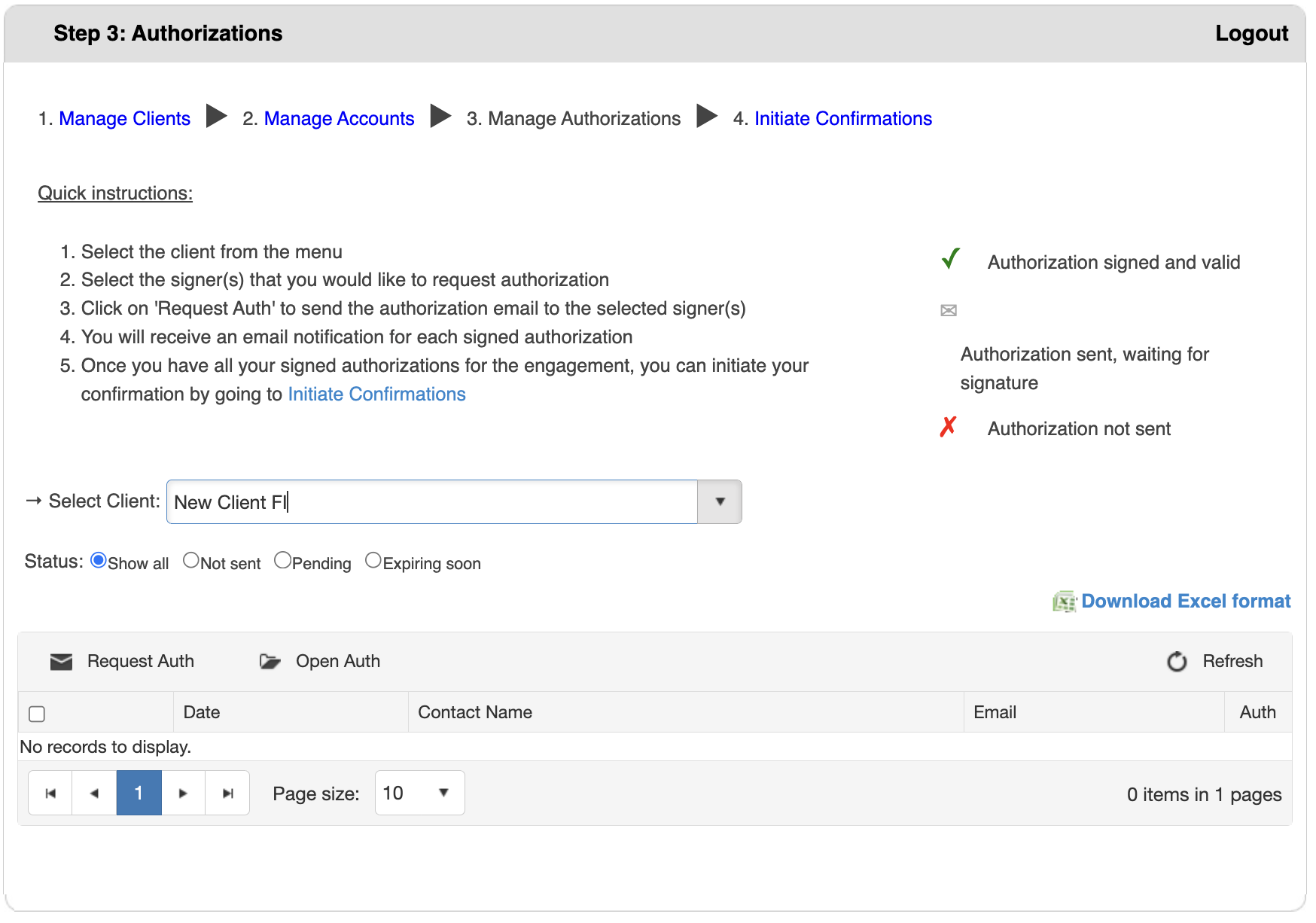
Select a Client
Before managing authorizations, select which client you're working with.
Steps:
- Locate the Select Client dropdown menu at the top
- Click the dropdown to view your client list
- Type to search or scroll to find the client
- Click on the client name to select them
- The page loads all signers for that client with their authorization status
Filter Authorization Records (Optional)
Use status filters to focus on specific authorization states.
Filter Options:
- Show all (Default) - Displays all authorization records
- Not sent - Shows only authorizations that haven't been sent yet
- Pending - Shows authorizations awaiting signature
- Expiring soon - Shows authorizations approaching expiration
How to Filter:
- Select the desired radio button option
- The table automatically updates to show filtered results
Request New Authorizations
Send authorization requests to signers who need to sign.
Steps:
- Select your client from the dropdown menu
- The authorization table displays all signers associated with the client
- Check the box next to each signer you want to send a request to
- Click Request Auth button (envelope icon)
- System sends authorization emails to selected signer(s)
What Happens Next:
- Each selected signer receives an authorization email
- Status changes to "Authorization sent, waiting for signature" (envelope icon)
- Signers click the link in email to review and sign
- You receive email notification when each signer completes authorization
- Status updates to "Authorization signed and valid" (green checkmark)
Open Existing Authorizations
View or review authorization documents that have already been created.
Steps:
- Check the box next to one or more authorization records
- Click Open Auth button (folder icon)
- System opens the authorization document(s) for viewing
View Authorization Status
The authorization table displays important information:
- Checkbox - Select records for bulk actions
- Date - When authorization was created or last updated
- Contact Name - Name of the authorized signer
- Email - Email address of the signer
- Auth - Authorization status icon
Download Authorization Report
Export authorization data for record-keeping.
Steps:
- Select a client
- Click Download Excel format link (top right corner)
- Excel file downloads with all authorization records for that client
- Use for documentation or reporting