
Commercial Account Audit
Commercial Account Audit is a service designed for auditors to confirm commercial account balances in conjunction with annual audits. This service provides official audit confirmations from financial institutions.
Step 1: Select Commercial Account Audit Program
- Log in to bankVOD
- Navigate to "Select a Program" page
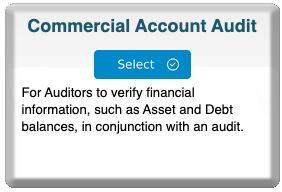
- Locate the Commercial Account Audit card
- Click blue Select button
Step 2: Select a Bank
You'll see a dropdown listing available financial institutions by:
- Bank name
- Processing information
How to Choose:
- Select the bank where client accounts are held
- Click the name on the correct institution (scroll the list or use the dropdown search bar to search the institution name directly)
Step 3: Complete the Order Form
Order Information
Bank Verification Program:
- Pre-filled field
- Confirms your program and institution selections
Requestor's Name:
- First Name: Your first name
- Last Name: Your last name
Requestor's Email Address:
- CRITICAL - where audit results will be sent
- Receives order confirmations and status updates
Today's Date:
- Format: MM/DD/YYYY
- Current date
Tracking/Engagement Number:
- Optional but recommended
- Reference number for your records
- Appears on records for easy identification
Company Name (Client):
- Official legal business name of client being audited
- Should match account holder information
Request Authorization by Email:
- Checkbox option
- Check if you want bankVOD to request authorization from account holder
- Use when you don't have authorization documentation
Client Contact
Information about the person at the client company who will authorize the audit confirmation.
Select from a previous authorizer:
- Dropdown menu if you've worked with this client before
- Auto-fills contact information
- Saves time on repeat audits
First Name:
- Client contact's first name
- Person who will authorize the audit confirmation
Last Name:
- Client contact's last name
Email:
- Client contact's email address
- Used for authorization requests
Information to be Verified
Department:
- Select from dropdown menu
- Represents different banks or divisions
- Helps organize multiple confirmations
Form Type:
- Select from dropdown menu
- Asset - For checking, savings, investment accounts
- Liability - For loans, lines of credit
- Other types may be available
Account Information Grid:
- Multiple rows for entering account details
- Can request confirmations for up to 10 accounts
- Enter specific account information for each
Comments:
- Open text field
- Provide additional information or special instructions
- For bank reference or internal notes
Step 4: Upload Documents
- Locate upload section
- Prepare authorization documents
- Name files appropriately
- Upload each document
- Verify successful upload
Step 5: Select Payment
Choose payment method:
- Bill to account (most common)
- Credit card on file
- New credit card
Step 6: Review and Submit
Before clicking Submit, verify:
✓ Your email address is correct
✓ Correct bank selected
✓ Client company name is accurate
✓ Client contact information complete
✓ Account information entered correctly
✓ Documents uploaded
Then:
- Check authorization box
- Click Submit Order
- Save your confirmation number
What's Next
Immediately:
- Confirmation email sent to you
- Order appears in MY ORDERS
- Status: "Submitted"
Processing:
- bankVOD contacts the financial institution
- Bank retrieves account information
- Processing time varies by bank
When Complete:
- Email notification sent
- Audit confirmation available in MY ORDERS for download
- PDF report delivered
Tracking Your Order
Check Status in MY ORDERS:
Status Meanings:
- Submitted - Order received, processing starting
- Pending Bank Response - Waiting for bank
- Completed - Ready to download
- Requires Attention - Need more information
How to Download:
- Go to MY ORDERS
- Find your Commercial Account Audit order
- Click Download when status shows "Completed"
- Save to audit file