
Step 4: Initiate Confirmation
The Initiate Confirmation page is the final step in the verification process. After completing client setup, adding accounts, and receiving signed authorizations, you'll use this page to submit confirmation requests to financial institutions.
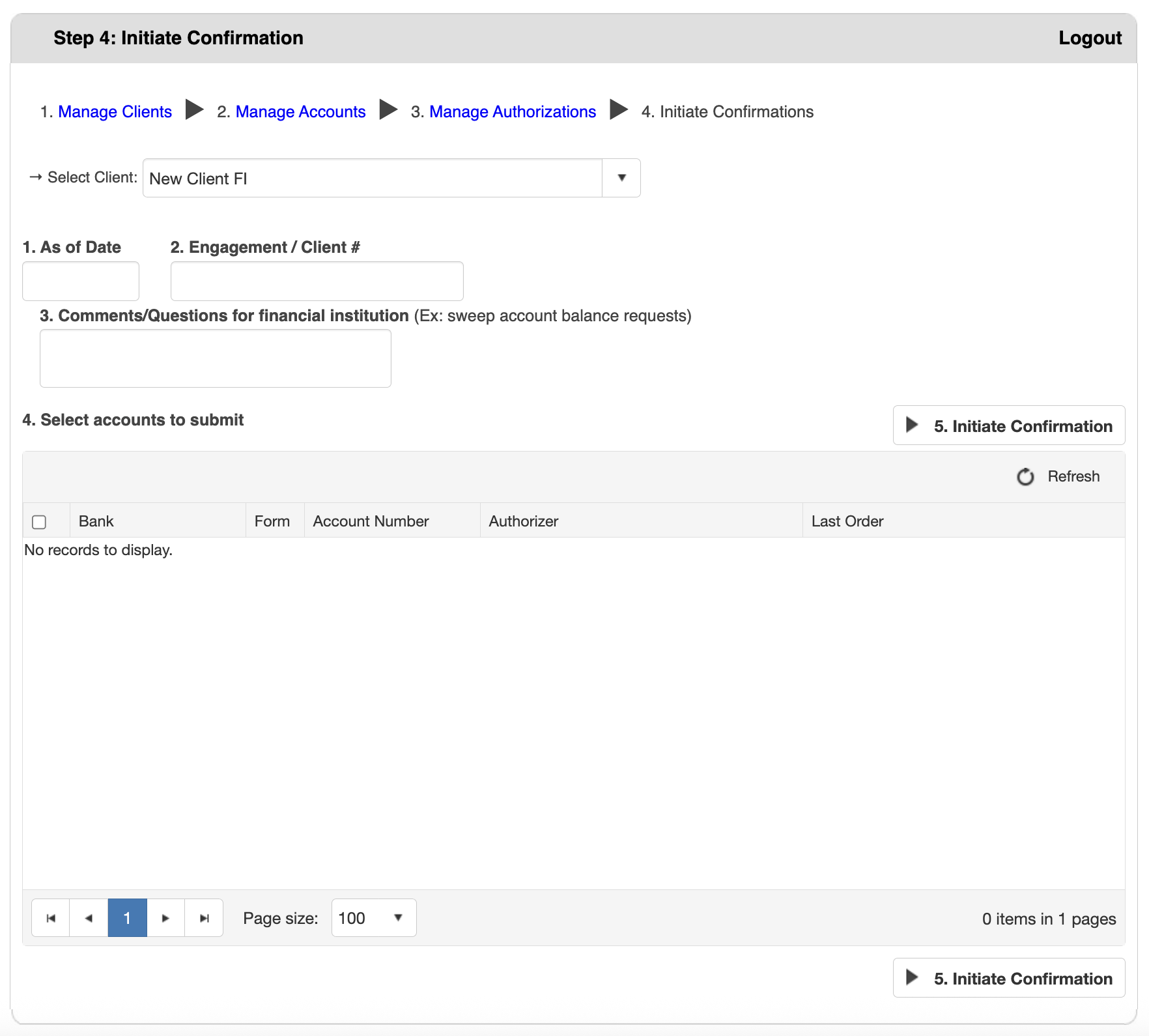
Step 1: Select Your Client
- Click the Select Client dropdown at the top of the page
- Type to search or scroll to find your client
- Click the client name to select
The confirmation form and accounts table will populate with the client's information.
Step 2: Complete the Confirmation Request Form
As of Date:
- Enter the date for account information verification
- Typically the balance sheet date or audit date
- Format: Use the date picker or enter manually
Engagement/Client #:
- Enter your internal engagement number or client reference
- Helps track and organize confirmation requests
- Use your firm's standard numbering convention
Comments/Questions for Financial Institution:
- Provide additional context
- Be clear and specific
- Keep it professional and concise (1-3 sentences)
Step 3: Select Accounts to Confirm
Understanding the Accounts Table:
The table shows all accounts with valid authorizations:
- Checkbox - Select accounts for confirmation
- Bank - Financial institution name
- Form - ASSET or DEBT
- Account Number - Account to be confirmed
- Authorizer - Authorized signer
- Last Order - Date of most recent confirmation request
How to Select:
- Review all available accounts in the table
- Check the box next to each account to include
- Use the header checkbox to select all accounts at once
Step 4: Review and Submit
Before submitting, verify:
- "As of Date" is correct
- Engagement/Client # is accurate
- All desired accounts are selected
- Comments are clear and professional
To Submit:
- Select the accounts to verify
- Click the "5. Initiate Confirmation" button
- You will receive a confirmation message with a summary of accounts that will be submitted
- Click "OK" to proceed
- Choose from the following options and then click the "Place Order" button to complete your order
- Monthly Invoicing - All charges will be billed on your monthly invoice (Note: Invoice payment is not available for all users.)
-
- Pay Now with Credit Card - You have the option to pay for a single request with a credit card
- You'll receive confirmation that the request was submitted