
Step 1: Add Client / Signer
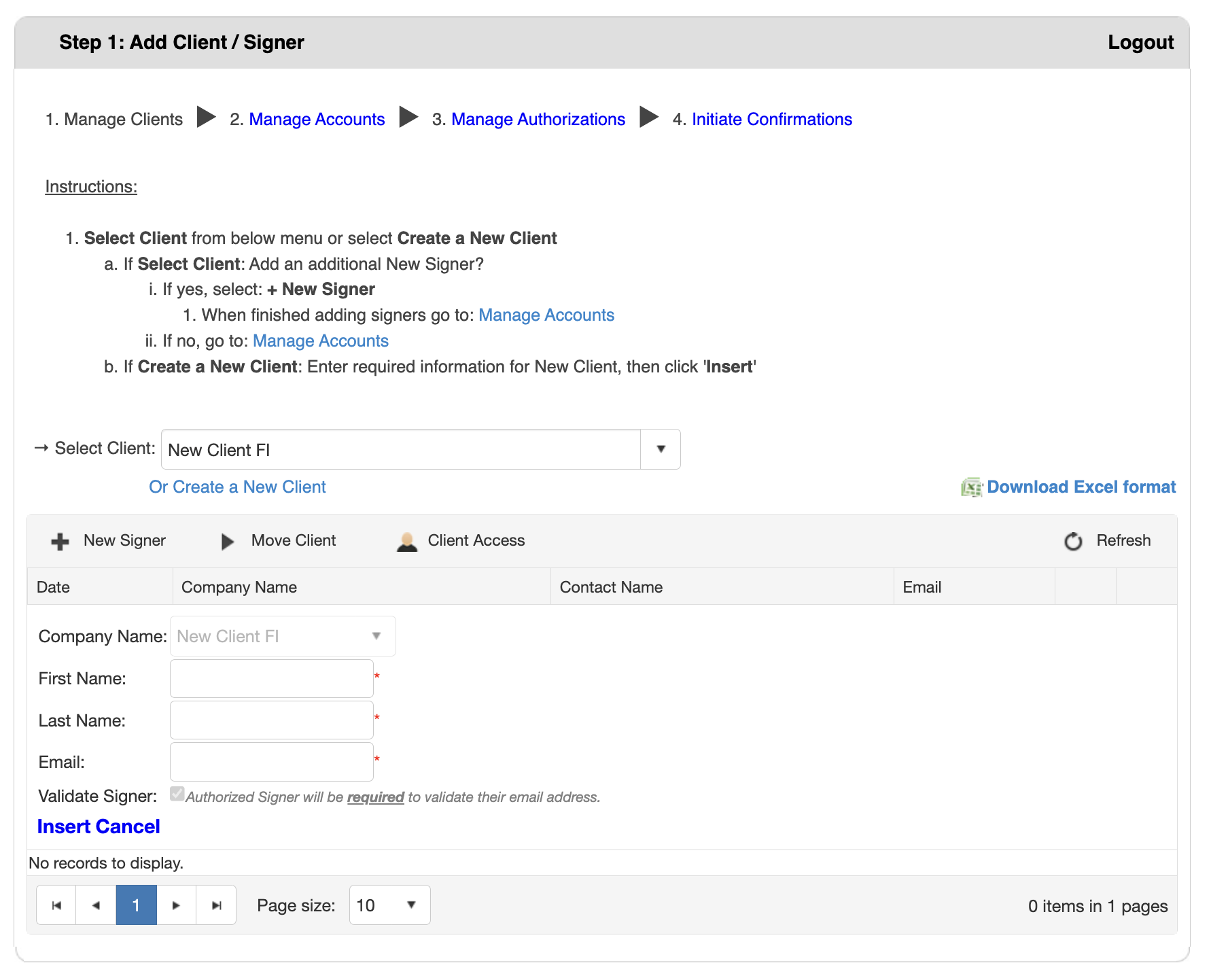
Step 1: Add Client/Signer is the first step in the verification workflow. This page allows you to set up clients (companies or individuals you're verifying information for) and add authorized signers who can approve verification requests.
Understanding Clients vs. Signers
What is a Client?
A client is a company or individual for whom you're ordering verification services.
Examples: Mortgage applicant/borrower, business customer, loan applicant, property buyer/seller
What is a Signer?
A signer is an authorized person who can approve verification requests for a specific client.
Examples: Business owner, Chief Financial Officer, primary borrower, co-borrower or guarantor
Accessing Add Client/Signer
- Log in to bankVOD
- Navigate to the verification workflow
- You'll see Step 1: Add Client / Signer at the top
Understanding the Interface
Search and Selection Area
- Select Client dropdown - Search for existing clients
- Or Create a New Client link - Add a new client
Action Buttons
- New Signer - Add additional signers to selected client
- Move Client - Transfer client to different category
- Client Access - Manage client portal permissions
- Refresh - Reload client list with latest data
Export Option
- Download Excel format - Export client and signer list to Excel
Client Data Table
Displays client information with columns:
- Date - When client was created
- Company Name - Business or organization name
- Contact Name - Primary contact person
- Email - Contact email address
Select Existing Client
Use this when adding signers to a client you've already created.
Steps:
- Click the Select Client dropdown
- Type client name in search box
- Select client from the list
- Client details appear in the table
- To add a signer, click + New Signer
- Complete the signer form (see below)
- Click Insert to save
- Repeat for additional signers
- When finished, click Manage Accounts to proceed
Create New Client
Use this for first-time clients or new loan applications.
Steps:
- Click Or Create a New Client link
- Complete the New Client Form:
- Company Name - Enter name of the 'Client'
- First Name - Enter authorized signer's first name
- Last Name - Enter authorized signer's last name
- Email - Enter valid email address for authorizer
- Validate Signer - Check this box
- Review all information carefully
- Click Insert button
- New client is created and becomes first signer
- To add more signers, select the client and click + New Signer
- When finished, click Manage Accounts to proceed
Move Client
Use this to transfer a Client to a different category.
Steps:
- Select the Client from the drop down menu that you would like to move
- Click on the Move Client button
- Select the auditor that you would like to move the client to and click on Save
Share Client
Steps:
- From Step 1, choose the client you would like to share from the dropdown
- Click on the Client Access button
- Select the user(s) that you would like to share the client with and click on Save
Add Signer to Existing Client
After selecting a client, add additional authorized signers.
Steps:
- Select the client from the dropdown
- Click + New Signer button
- Complete the Signer Form:
- Company Name - Auto-populated with selected client
- First Name - Signer's legal first name
- Last Name - Signer's legal last name
- Email - Signer's email (where authorization requests go)
- Validate Signer - Check this box
- Review information carefully
- Click Insert button
- Signer is added to client's authorization list
Understanding "Validate Signer" Checkbox
If Checked (Recommended):
- System requires email validation
- Signer receives validation email
- Must click link to confirm email
- Ensures email is valid and monitored
- Prevents authorization going to wrong email
If Unchecked:
- Authorization requests sent immediately
- Risk of invalid email address
- May cause authorization delays
Best Practice: Always check this box to ensure successful authorizations.
Export Client List to Excel
How to Export
- Click Download Excel format link (upper right)
- Excel file (.xlsx) downloads automatically
- Opens in Microsoft Excel or compatible program
What's Included in Export
- Date added
- Company name
- Contact person name
- Email address
- All associated signers
- Signer email addresses
- Validation status
Uses for Excel Export
Record Keeping: Backup of client database, historical records, audit documentation
Reporting: Client lists for management, signer contact directory, client analysis
Data Management: Import to other systems, share with team members, update in bulk