
Payment History
The Payment History page provides a detailed record of all payments made to your bankVOD account. You can view payment transactions, track your account balance over time, access payment receipts, and export your payment history for accounting and reconciliation.
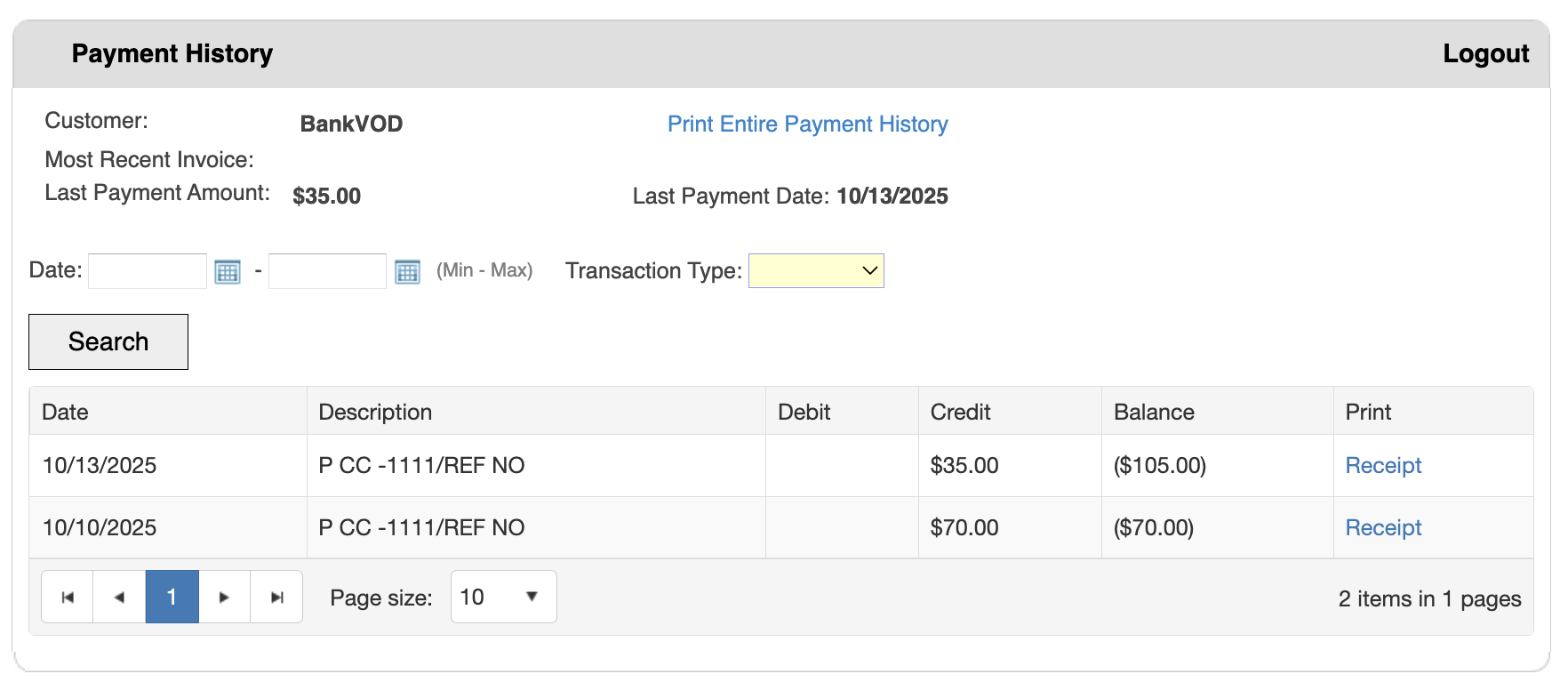
Step 1: Access Payment History
- Log in to your bankVOD account
- Navigate to Payment History from the menu
Step 2: Search for Specific Payments (Optional)
Using Date Range Filter:
- Click in the first date field (Min)
- Enter start date or use calendar picker
- Click in the second date field (Max)
- Enter end date or use calendar picker
- Click Search button
Using Transaction Type Filter:
- Click the Transaction Type dropdown
- Select type:
- Payment (Credit Card)
- Payment (ACH)
- Credit
- Adjustment
- Refund
- All (default)
- Click Search to apply filter
Step 3: Review Payment History Table
The table displays:
Date:
- When payment was processed
- Format: MM/DD/YYYY
- Most recent first
Description:
- Transaction details
- Format: "P CC -1111/REF NO"
- P = Payment
- CC = Credit Card (or ACH for bank transfer)
- -1111 = Last 4 digits of card/account
- REF NO = Reference number
Debit:
- Charges to your account
- Typically blank for payments
- Shows fees or adjustments that increase balance
Credit:
- Payments to your account
- Shows in parentheses: ($35.00)
- Your payments appear here
Balance:
- Running account balance
- Negative balance in parentheses = credit on account (good!)
- Positive balance = amount owed
- Most current balance at top
Step 4: Access Payment Receipts
To View a Receipt:
- Locate the payment in the table
- Click the blue "Receipt" link in the Print column
- Receipt opens in new window as PDF
Receipt Contents:
- bankVOD contact information
- Date of payment
- Payment method (card ending in XXXX)
- Total amount paid
- Reference number
- Detailed order information:
- Verification Program (type of service)
- Order Date
- Client name
- Tracking/engagement number
- Cost per item • Customer service contact information
Step 5: Download Reports (Optional)
Option 1: Payment History PDF
- Click Receipt link
- Click "Payment History" (PDF icon)
- Professional formatted report opens
- Can be printed or saved
- Suitable for formal documentation
Option 2: Download Excel Format
- Click Receipt link
- Click "Download Excel format" (Excel icon)
- Spreadsheet (.xlsx) downloads
- Data can be sorted and analyzed
- Import into accounting software
Option 3: Print Entire Payment History
- Click "Print Entire Payment History" link (top right)
- Print-formatted version opens
- Use browser print function (Ctrl+P or Cmd+P)
- Select printer or "Save as PDF"