
Account Sessions
The Login Sessions page provides administrators and security personnel with real-time visibility into user login activity. This tool helps monitor active sessions, track user access patterns, detect unauthorized access attempts, and maintain system security through comprehensive session management.
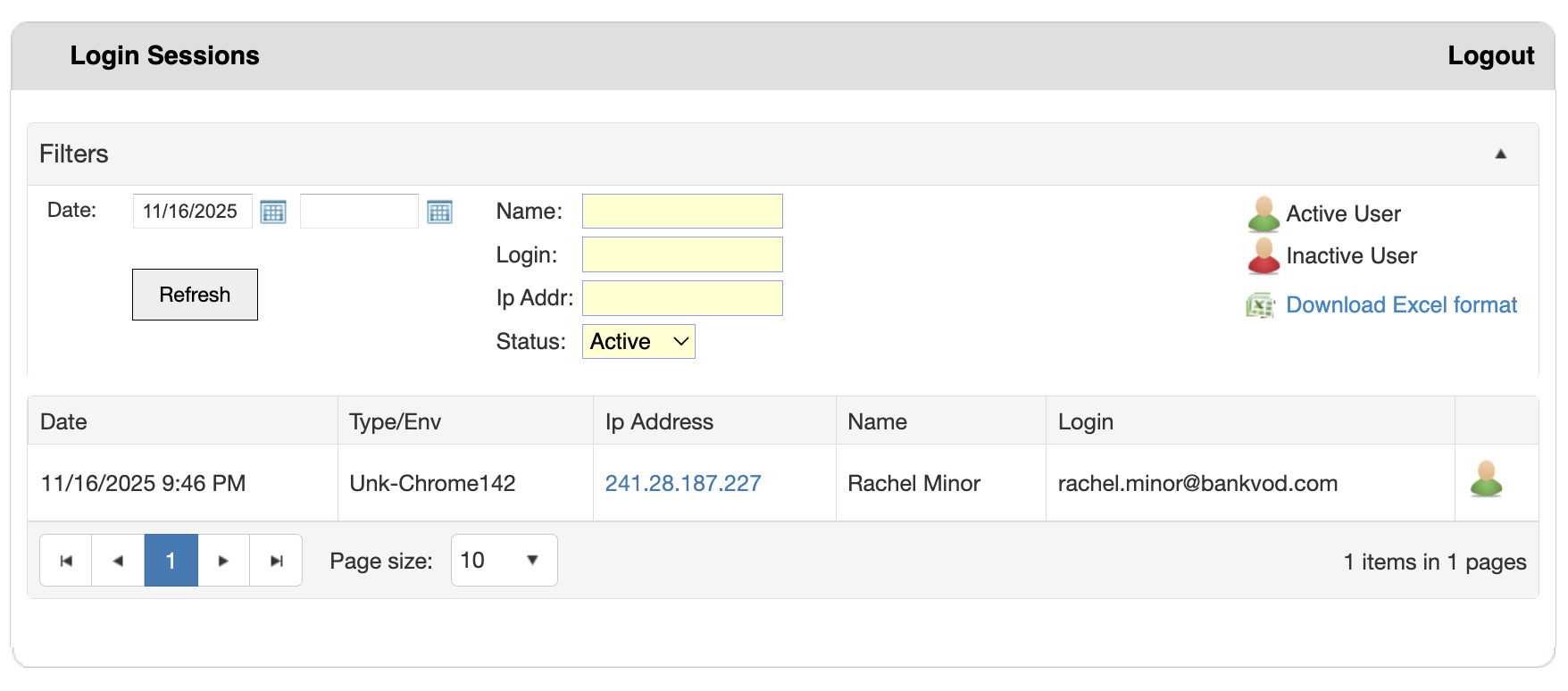
Step 1: Access Login Sessions
- Log in to bankVOD
- Select "Login Sessions" from the Main Menu
- You'll see the filter section and sessions table
Step 2: Apply Filters (Optional)
Use the filters at the top to search for specific sessions:
Date Filter:
- Two date fields for specifying a date range
- First field: Start date (From)
- Second field: End date (To)
- Format: MM/DD/YYYY (e.g., 10/16/2025)
- Click calendar icon to select dates visually
Name Filter:
- Search by user's first or last name
- Enter partial or complete name
- Not case-sensitive
- Leave blank to include all users
Login Filter:
- Search by username/email address
- Enter full or partial email address
- Most precise way to find a specific user
- Leave blank to include all logins
IP Address Filter:
- Search by IP address
- Enter full or partial IP address
- Useful for tracking logins from specific locations
- Helps identify patterns or suspicious access
Status Filter:
- Dropdown to filter by session status
- Active - Shows only currently active sessions
- Inactive - Shows only logged out/expired sessions
- All - Shows both active and inactive sessions
Step 3: Execute Your Search
- Enter your desired filter criteria in any combination
- Click the "Refresh" button to apply filters and update results
- The table below displays matching sessions
To Clear Filters: Clear individual fields and click Refresh or enter new criteria to override previous search
Understanding the Sessions Table
The table displays login session information with these columns:
Date:
- Date and time of the login session
- Format: MM/DD/YYYY H:MM AM/PM
- Shows when the user logged in
- Sorted typically by most recent first
Type/Env:
- Browser and version information
- Operating system details (if captured)
- Helps identify the device/browser used
IP Address:
- The IP address from which the user logged in
- Clickable link in blue for additional details
- Critical for security monitoring
- Can reveal user's geographic location
Name:
- User's full name (First and Last)
- As registered in the system
Login:
- User's email address (username)
- Used for login authentication
- Unique identifier for each user
Status Icon:
- Visual indicator at the far right of each row
- Green person icon = Active session
- Red person icon = Inactive session
Downloading Session Data
Click the "Download Excel format" link (with Excel icon) in the top right corner to export session data.
The exported Excel file includes:
- Date/Time - Login timestamp
- IP Address - Source IP address
- Status - Active or Inactive
- Login - User's email/username
- Account - Internal account number
- Company - Organization name
- First Name - User's first name
- Last Name - User's last name
- Email - User's email address
- OS - Operating system
- Browser - Browser and version