.png?width=200&name=BankVOD_Veriv_Company_medium%20(1).png)
Authorized Signer View
Before a financial institution releases account information, the auditor needs permission from the client’s authorized signer. bankVOD gives you the option of an electronic authorization capture. The process takes a few minutes and has three steps. This guide will show you the steps as seen by the Authorized Signer.
Step 1: The signer opens the authorization email
- The signer receives an email from bankVOD. The subject line reads “Authorization required from,” followed by the auditor’s name and firm.
- The email explains that the auditor and the financial institution require an electronic signature to release account information directly to the auditor for an audit confirmation.
- The signer clicks the green Sign Authorization button to open the signature page.
IMPORTANT: The signer must sign even if prior written authorization has been provided. The request expires in 90 days.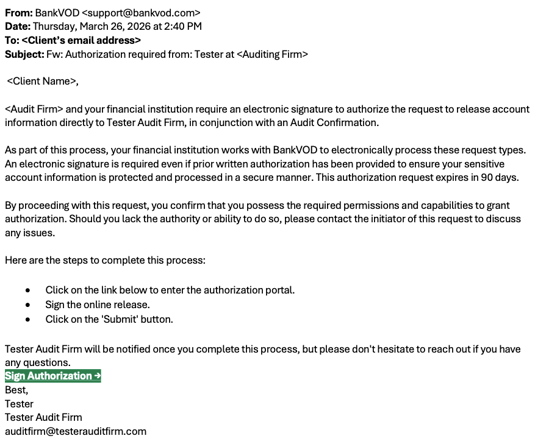
Step 2: The signer verifies their identity
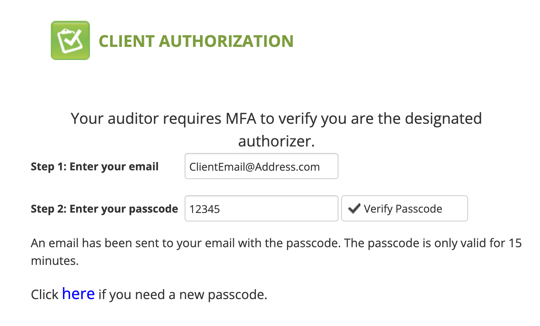
The auditor requires multi-factor authentication (MFA) to confirm the signer is the designated authorizer.
- The signer enters their email address. It must be the same address the request was sent to.
- The signer clicks Send Code.
- The signer opens the email with the passcode.
- The signer enters the passcode and clicks Verify Passcode.
Passcode validity: The passcode is valid for 15 minutes. If it expires, the signer can click the here link on the same page to request a new one.
Step 3: The signer reviews and signs
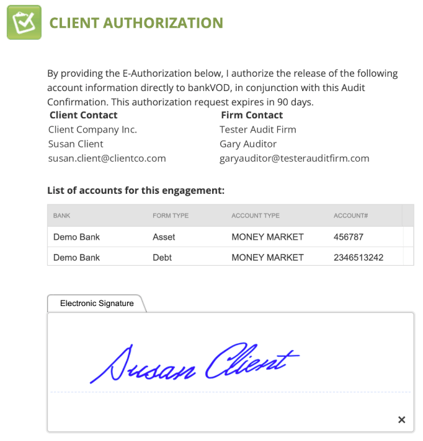
The Client Authorization page shows the signer:
- Client Contact: the client’s company and contact information
- Firm Contact: the auditor’s firm and contact information
- List of accounts for this engagement: the bank, form type, account type and account number for each account
The signer completes the form:
- Electronic Signature: the signer adds their signature in the signature box
- Your Job Title: required
- Your Phone Number: optional
The signer then clicks Submit.
What’s next
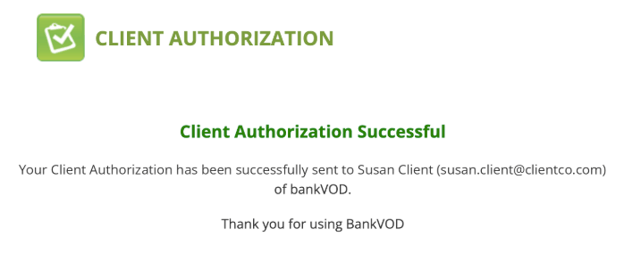
The signer is done. A confirmation page shows that the authorization was successful. No further action is needed.
The auditor receives an email as soon as the signer signs. Their record updates with a green check and the date of the signature, and they can place the confirmation request.
If the signer doesn’t receive the email or passcode
- Confirm the signer enters the same email address the request was sent to.
- Ask the signer to add support@bankvod.com and the @veriv.com domain to their email safe-senders list.
- Ask the signer to check their spam or junk folder.