
Authorized Users
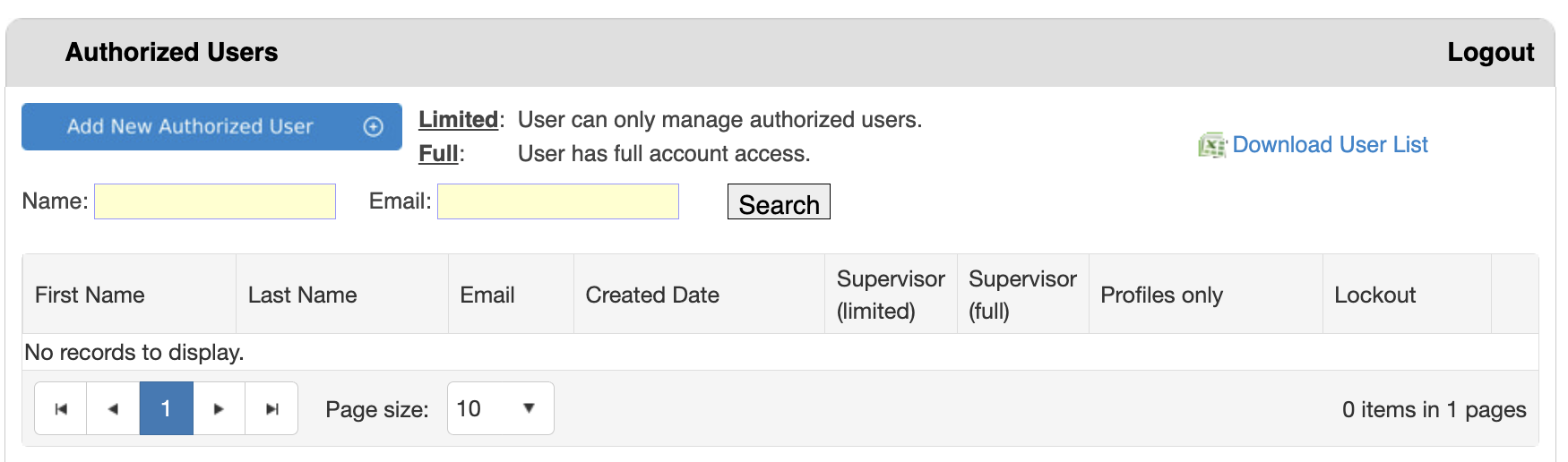
The Authorized Users page allows administrators to manage user accounts within the bankVOD system. You can add new users, search for existing users, manage their permissions, and control access to the platform.
Understanding Permission Levels
bankVOD has two primary user permission levels:
Limited Access:
- Can only manage authorized users
- Cannot access verification services, client management, or other core functions
- For HR staff or administrators who only need to manage user accounts
- Maintains security by limiting access to sensitive verification data
Full Access:
- Has complete system functionality
- Can access all verification services, client management, account management, authorizations, confirmations, and user management
- For operational staff performing verification work
- Provides comprehensive access for staff performing verification work
Step 1: Start Adding a New User
- Log in to bankVOD
- Select "Authorized Users" from the Main Menu
- Click the blue "Add New Authorized User" button (with plus icon)
Step 2: Complete the User Information Form
A new window titled "Authorized User" will open with the following fields:
First Name (Required):
- Enter the user's first name
- Appears in system logs and user lists
Last Name (Required):
- Enter the user's last name
- Appears in system logs and user lists
Email (Required):
- Enter the user's business email address
- This serves as the username for login
- Must be unique in the system
- User will receive system notifications at this address
Password:
- The system displays "Auto generated password" in italics
- A secure password is automatically created when you submit the form
- User receives temporary password via email
- Users should change password after first login
Cost Center/Acct Code (Optional):
- Enter a cost center or account code if your organization uses internal billing/tracking
- Used for internal reporting and cost allocation
- Examples: "Marketing-001", "Finance-Dept", "Client-Services"
- Leave blank if not applicable
Comments (Optional):
- Large text field for additional notes about the user
- Use to document:
- User's role or responsibilities
- Department or team assignment
- Special access requirements
- Contact information
- Example: "Handles mortgage verification requests for East Coast clients"
Step 3: Submit the New User
- Review all information for accuracy
- Click the blue "Submit" button (with checkmark icon)
- The system creates the user account and sends login credentials to the email provided
What's Next
User Account Created:
- User account is created immediately
- An auto-generated password is created
- User appears in the Authorized Users list
- User can log in immediately using provided credentials
Welcome Email Sent:
The new user receives a welcome email with:
- Username (their email address)
- Temporary password
- Login instructions
- Link to the system
First-Time Login:
- User should change their auto-generated password
- User should review their account settings
- User should test their access level
Searching for Users
Use the search filters to quickly find specific users:
Search by Name:
- Enter the user's first or last name
- Partial matches may work
- Not case-sensitive
Search by Email:
- Enter full or partial email address
- Most precise search method
- Helpful for verifying if an email is already in use
To Execute Search:
- Enter search criteria in one or both fields
- Click the "Search" button
- Results table updates to show only matching users
- To view all users, clear the fields and search again
Understanding the User List Table
The table displays all authorized users with these columns:
First Name: User's first name as entered during account creation
Last Name: User's last name as entered during account creation
Email: User's email address (also serves as username); Unique identifier for each user account; Contact point for system notifications
Created Date: Date and time when user account was created; Helps track account age and onboarding timing
Supervisor (limited): Indicates users with Limited access permissions; Shows if user can only manage authorized users; These users cannot access verification services
Supervisor (full): Indicates users with Full account access; Shows if user has comprehensive system permissions; These users can access all system functions
Profiles only: Special permission indicator; Shows if user has access only to profile management
Lockout: Indicates if the user account is locked; Locked accounts cannot log in; Used for security or when access needs to be temporarily suspended
Downloading the User List
Click the "Download User List" link (with Excel icon) in the top right corner to export all authorized users.
The exported Excel file includes:
- Account Type - Permission level (Limited or Full)
- First Name - User's first name
- Last Name - User's last name
- Email - User's email/username
- Created Date - When the account was created
- Last Login Date - Most recent login timestamp
- Cost Center/Acct Code - Internal billing/tracking code
- Lockout - Account lock status
Managing Existing Users
To Change Permissions:
- Users can be upgraded from Limited to Full access
- Users can be downgraded from Full to Limited access
- Consider the user's role and responsibilities
- Document permission changes for audit purposes
When to Lock an Account:
- User has left the organization
- Suspected security breach or unauthorized access
- User is on extended leave
- During access reviews or security investigations
- Temporary suspension pending investigation
To Lock an Account:
- Locate the user in the table
- Access the Lockout function (in the Lockout column)
- Confirm the lockout action
- User will be immediately unable to log in
To Unlock an Account:
- Locate the locked user in the table
- Access the Lockout function
- Remove the lockout status
- User can log in again immediately
If a user forgets their password:
- Access the user's account settings
- Generate a new auto-generated password
- User receives the new password via email
- Instruct user to change password after logging in
Permission Levels in Detail
Limited Access Use Cases
Appropriate for:
- Human Resources staff managing user accounts
- Administrative assistants handling user onboarding
- IT administrators who only manage system access
- Staff who need to add/remove users but not access verification data
Cannot Access:
- Client management functions
- Account management and setup
- Authorization requests
- Confirmation initiations
- 4506-C/SSN orders
- Verification results and data
Full Access Use Cases
Appropriate for:
- Verification specialists and analysts
- Account managers handling client relationships
- Operations staff performing daily verification work
- Supervisors overseeing verification processes
- Management requiring visibility into all functions
Can Access:
- All user management functions
- Complete client lifecycle (Steps 1-4)
- All verification services
- Reporting and analytics
- System configuration (if role permits)