
Business Inquiry
Business Inquiry (Credit Reference) is designed for commercial account inquiries to validate banking information in support of a current transaction, consumer account rating, or extension of credit.
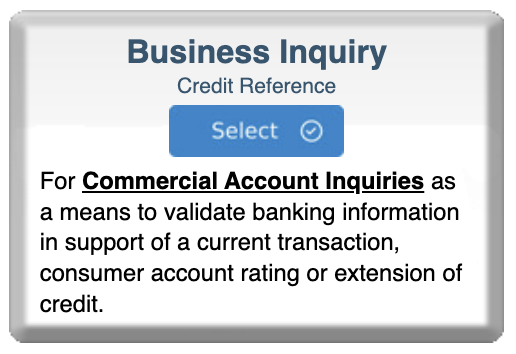
Step 1: Select Business Inquiry Program
- Log in to bankVOD
- Navigate to "Select a Program" page
- Locate the Business Inquiry card with subtitle "Credit Reference"
- Click blue Select button
Step 2: Select a Bank
You'll see cards for available financial institutions showing:
- Bank name
- Processing time
- Price
Click Select on the card for your desired bank.
Step 3: Complete the Order Form
Important Alert: Results will be emailed directly to the address you specify. No need to log back in to retrieve results. Faster delivery and reduced transmission errors.
Order Information
Bank Verification Program:
- Pre-filled field
- Confirms your program and institution selections
Your Name:
- First Name: Your first name
- Last Name: Your last name
Your Email Address:
- CRITICAL - where completed verification will be sent
- Receives order confirmations and status updates
- Double-check for accuracy
Date:
- Format: MM/DD/YYYY
- Current date
Tracking Number:
- Optional but recommended
- Can be customer name, application number, credit file reference
- Appears on invoices for easy matching
- Helps organize multiple inquiries
Business/Customer Information
Bank's Customer Name:
- Legal name of business as it appears on bank account
- Use exact legal business name
- Include suffixes like Inc., LLC, Corp., etc.
- Match the name on account precisely
Company Name:
- Your company name (the requestor's company)
- Not the customer's business name
Business Address Information
Address 1:
- Primary street address of business being verified
- Include suite or unit number if applicable
Address 2:
- Optional
- Additional suite/unit details, building name, or P.O. Box
City:
- City where business is located
State:
- Two-letter state abbreviation or full state name
Zip:
- 5-digit ZIP code or ZIP+4
Tax Identification Number
TIN# (Tax Identification Number):
- Business's Federal Tax ID Number (EIN or SSN for sole proprietors)
- Format: 12-3456789 (9 digits)
- Required for accurate account matching
- Protected by encryption
Account Information
Account Number:
- Enter account number(s) to be verified
- Multiple rows available for multiple accounts
- Use exact account numbers
State (for each account):
- State where each account is held
- May differ if business has accounts in multiple states
Reason for Inquiry
Select the appropriate reason:
Option 1: Establish new credit in the amount of $__________
- Check if this is new customer requesting credit
- Enter dollar amount of credit being considered
Option 2: Updating existing credit in the amount of $__________
- Check if customer already has credit with you
- Enter new total credit amount being considered
Comments:
- Open text field
- Provide additional information or special instructions
- Common uses: urgency notes, specific information needs, context
Step 4: Upload Documents
- Locate upload section
- Prepare authorization documents
- Name files appropriately
- Upload each document
- Verify successful upload
Step 5: Select Payment
Choose payment method:
- Bill to account (most common)
- Credit card on file
- New credit card
Step 6: Review and Submit
Before clicking Submit, verify:
✓ Business name spelled correctly and matches bank account
✓ Your email address is accurate (results sent here!)
✓ TIN is correct and complete
✓ All account numbers are accurate
✓ Business address is complete
✓ Selected appropriate reason for inquiry
✓ Entered credit amount being considered
✓ Uploaded authorization documents
✓ Selected correct payment method
Then:
- Check authorization box
- Click Submit Order
- Save your confirmation number
After You Submit
1. Order Confirmation (Immediate)
Email confirmation contains:
- Order reference number
- Bank selected
- Expected processing time
- Order details summary
- Tracking number (if provided)
2. Bank Processing
bankVOD submits your inquiry to the selected financial institution:
- Bank receives verification request
- Bank verifies authorization is valid
- Bank reviews account information
- Bank prepares response
3. Results Delivery
Completed verification is emailed to your specified email address:
- Direct email delivery
- No need to log back in
- Immediate notification
- PDF or secure document format
Tracking Your Order
Check Status in MY ORDERS:
Status Meanings:
- Submitted - Order received by bankVOD
- Processing - Sent to bank, awaiting response
- Completed - Results delivered to your email
- On Hold - May require additional information