
My Orders
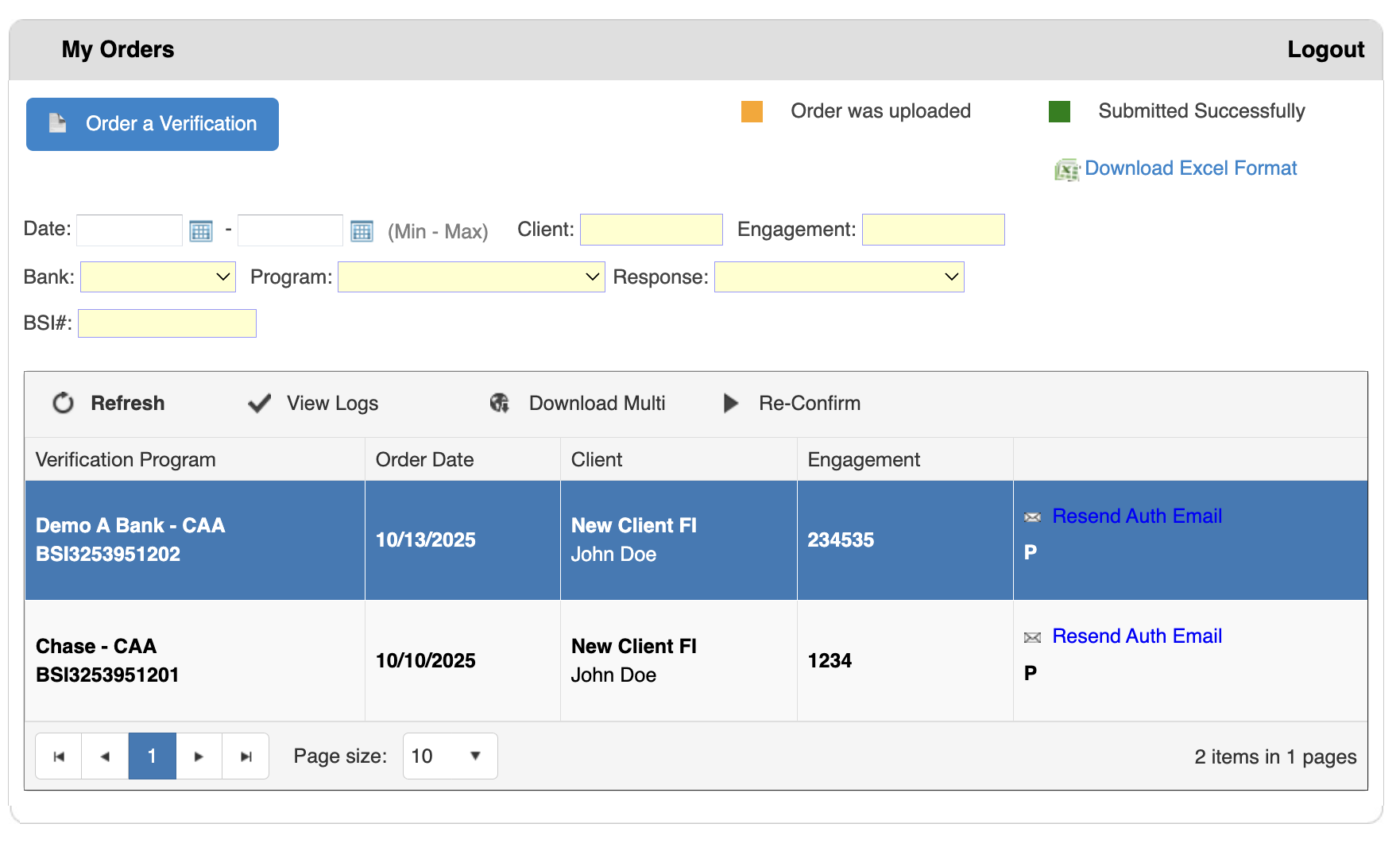
My Orders is your central hub for tracking and managing all verification requests. Use it to monitor order status, download results, resend authorizations, and maintain records of all verification activity.
Accessing My Orders
- Log in to bankVOD
- Click MY ORDERS from the left sidebar menu
Understanding the Interface
Status Indicators
Two color-coded squares at the top show order status:
🟩 Green Square - Submitted Successfully
🟧 Orange Square - Order was uploaded (may need authorization)
Search and Filter Tools
Find orders quickly using these filters:
- Date Range - Select start and end dates
- Client - Enter client name
- Engagement - Search by your tracking number
- Bank - Filter by financial institution
- Program - Filter by verification type (CAA, VOA, Employment, etc.)
- Response - Filter by status (Pending, Completed, etc.)
- BSI# - Search by bankVOD order number (format: BSI3253951202)
Action Buttons
- Refresh - Update order list with latest status
- View Logs - See detailed activity logs for selected orders
- Download Multi - Download multiple orders at once
- Re-Confirm - Resubmit orders that need confirmation with a message for the responder
- Note: Once the bank responds, the auditor will receive an email notification and the record will show up on top of the list. To review the comments from the responder, click on the "Action Required" button
Order List Columns
- Verification Program - Service type and bank name (includes BSI number below)
- Order Date - When order was placed (MM/DD/YYYY)
- Client - Client or customer name
- Engagement - Your internal tracking number
- Action - Contains "Resend Auth Email" link when applicable
View Order Details
- Click on any order row
- Review complete order information
- Check processing history
Download Single Order
- Find your order in the list
- Click on the order row
- Use the download link in the order details
Download Multiple Orders
- Check the box next to each order you want to download
- Click Download Multi button
- Click Download in the confirmation prompt
- Files download as a ZIP file or sequentially
Resend Authorization Email
- Locate order in My Orders list
- Click Resend Auth Email link in action column
- New authorization email sent to client
- Check View Logs to confirm
View Activity Logs
- Select an order (check the box)
- Click View Logs button
- Review two documents: • Confirmation Request Form • Electronic Authorization Log with complete activity timeline
Export to Excel
- Click Download Excel Format link (upper right)
- Excel file downloads automatically (.xlsx format)
- Contains all order data for record-keeping and reporting
Filter by Date
- Click calendar icon in Date field
- Select start date (Min)
- Select end date (Max)
- Orders within range display
Search by Client
- Enter client name in Client filter field
- Press Enter or click search
- View all orders for that client