
Step 2: Manage Accounts
The Account Manager allows you to add and manage bank accounts for your clients. You can add accounts individually or upload multiple accounts at once using the bulk upload template.
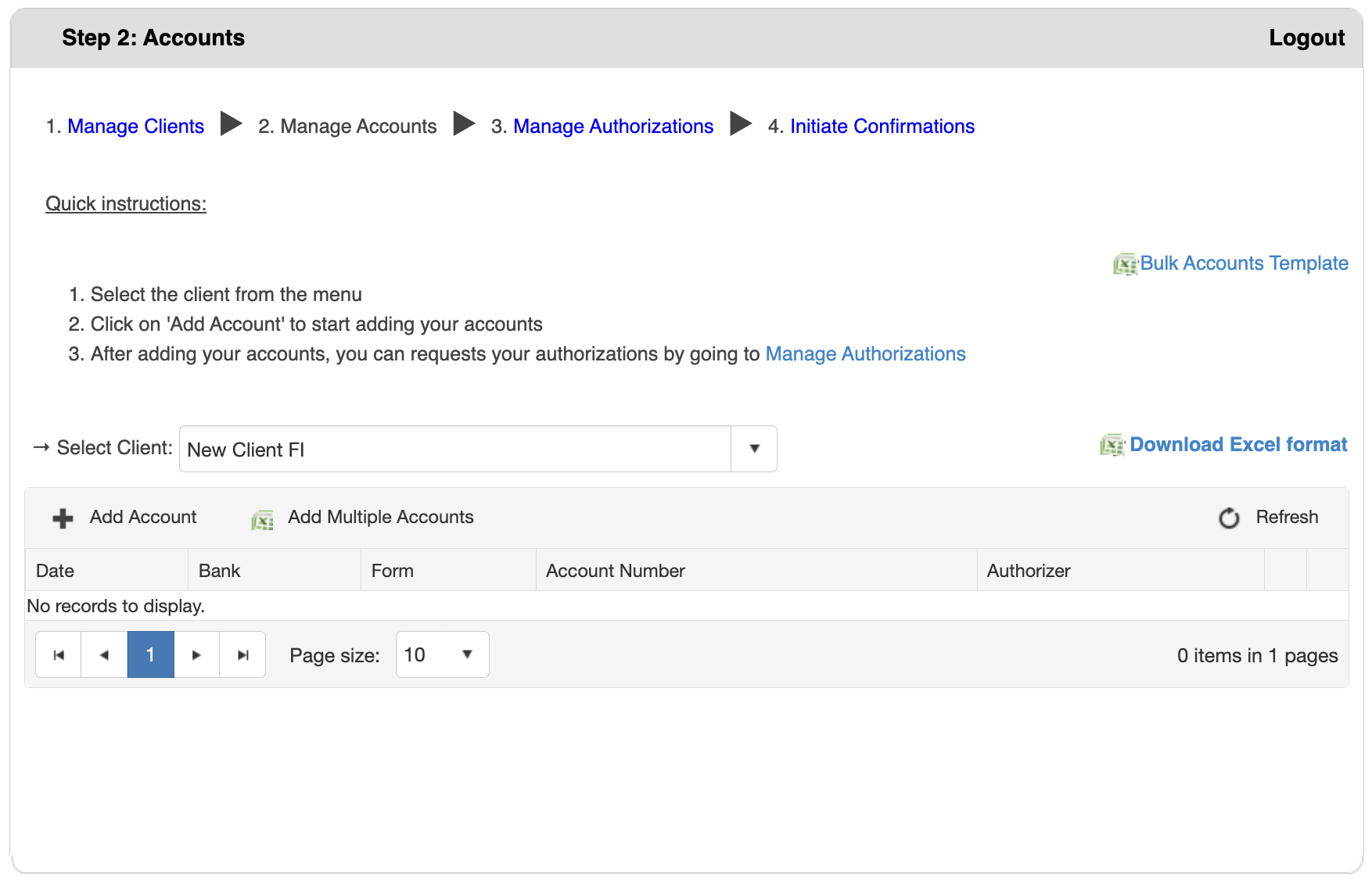
Understanding the Workflow
Four-Step Process
- Manage Clients - Add clients and signers (completed in Step 1)
- Manage Accounts (current step) - Add account information
- Manage Authorizations - Configure authorization settings
- Initiate Confirmations - Submit verification requests
What Are Accounts?
Accounts are the specific bank accounts that need verification. Each account requires:
- Bank name - The financial institution
- Form type - ASSET or DEBT
- Account type - Specific type (checking, savings, line of credit, etc.)
- Account number - The full account number
- Authorizer - The signer who will authorize this account's verification
Accessing Manage Accounts
- Log in to bankVOD
- Navigate to Step 2: Accounts from the main menu
- The workflow progress bar shows your current step
Select a Client First
Before adding any accounts, you must select which client these accounts belong to.
Steps:
- Locate the Select Client dropdown menu
- Click the dropdown to view your client list
- Type to search or scroll to find the client
- Click on the client name to select them
- The client name appears in the selection field
Option 1: Add Single Account
Use this method to add one account at a time.
Steps:
- After selecting a client, click Add Account button
- Complete the Account Form:
- Bank - Select the financial institution from dropdown
- Department - Select department (if applicable)
- Form - Choose ASSET or DEBT
- Account Type - Select specific type (changes based on bank and form)
- Account Number - Enter complete account number
- Authorizer - Select the authorized signer for this account
- Review all information carefully
- Click Insert to save the account
- Or click Cancel to discard and return to account list
- Repeat for additional accounts
Form Types Explained:
- ASSET - Accounts with funds (checking, savings, CDs, deposits)
- DEBT - Accounts with borrowed money (loans, lines of credit, mortgages)
Option 2: Bulk Upload Multiple Accounts
Use this method to add many accounts at once using an Excel template.
Download the Template
- Click Bulk Accounts Template link (top right corner with Excel icon)
- Save the Excel file to your computer
- Open in Microsoft Excel or compatible spreadsheet software
Understand the Template
The template contains two sheets:
- Add Accounts Sheet (Main Sheet): This is where you enter your account data with these columns:
- Bank - Bank name exactly as it appears in system
- Form - Enter "ASSET" or "DEBT"
- Account Type - Specific account type
- Account Number - Full account number
- Authorizer Email - Email of the authorized signer
Options Sheet (Reference Sheet):
This sheet shows valid combinations of Bank Name, Form Type, and Account Type. Use this as your reference guide.
Prepare Your Upload File
- Open the downloaded template
- Review the Options sheet to see valid combinations
- Delete or clear the sample data rows
- Enter your account information in the Add Accounts sheet
- Ensure authorizer emails match signers already added to your client
- Double-check all entries for accuracy
- Save the file
Upload Your File
- Select your client from the dropdown
- Click Add Multiple Accounts button
- Click Select File button
- Navigate to your completed Excel file
- Select the file and click "Open"
- File name appears in the text box
- Click Save button (checkmark icon) to upload
- Or click Cancel button (X icon) to abort
Viewing Your Accounts
Account Table
After adding accounts, they display in a table with these columns:
- Date - When the account was added
- Bank - Financial institution name
- Form - ASSET or DEBT
- Account Number - The account number
- Authorizer - The authorized signer
Table Features
- Pagination controls - Navigate through multiple pages
- Page size dropdown - Adjust items per page (default: 10)
- Refresh button - Reload the account list with latest data
Understanding Form Types
ASSET Accounts
Accounts where the client has funds or assets:
- Checking accounts
- Savings accounts
- Money market accounts
- Certificates of Deposit (CDs)
- Investment accounts
- Escrow accounts
DEBT Accounts
Accounts where the client owes money:
- Mortgages
- Lines of credit
- Business loans
- Equipment financing
- Credit facilities
- Letters of credit